 Article Formatter
You type an apostrophe in Word and it comes out curved. You copy a quote from a blog post and paste it into a config file, and suddenly your JSON won't parse. You write a line of code in Google Docs to share with a coworker, and when they paste it into their editor, nothing runs. Same problem every time: smart quotes, also called curly quotes or typographic quotes, look almost identical to plain straight quotes but are different characters underneath.
Word processors add them automatically to make documents look more polished in print. That's fine for a printed page. It's a problem the moment that text needs to become code, data, or plain text that other software has to parse exactly. This guide covers what these characters actually are, how to remove them, how to stop them from appearing in the first place, and why they cause so much trouble in JSON and code specifically.
Smart quote characters vs. their straight equivalents
| Character | Unicode | HTML entity | Straight equivalent |
|---|---|---|---|
| Left single quote ' | U+2018 | ‘ | ' (U+0027) |
| Right single quote ' | U+2019 | ’ | ' (U+0027) |
| Left double quote " | U+201C | “ | " (U+0022) |
| Right double quote " | U+201D | ” | " (U+0022) |
Note: the right single quote (U+2019) is also the character Word uses for apostrophes, so "don't" and "can't" are affected too, not just quoted speech.
Browser Tool: The Fastest Option
If you just need clean, straight quotes right now, the Article Formatter handles it in one click. Paste your text into the input area and click Format. It automatically:
- Converts left and right curly single quotes into straight apostrophes
- Converts left and right curly double quotes into straight double quotes
- Fixes related Word artifacts at the same time, like em dashes and ellipsis characters
- Leaves the rest of your text untouched
Nothing is sent to a server, everything runs in your browser. This is the same underlying cleanup used in the guide to fixing weird characters in WordPress, since smart quotes are one part of the broader Windows-1252 encoding mismatch covered in Windows-1252 vs UTF-8. If your text also has irregular spacing from the same copy-paste, the guide to removing extra spaces covers that separately.
Stop Word from Creating Smart Quotes
Fixing text after the fact works, but it's better to stop Word from converting quotes in the first place if you frequently write text that ends up as code or data.
- Go to File > Options > Proofing > AutoCorrect Options
- Open the "AutoFormat As You Type" tab
- Uncheck "Straight quotes with smart quotes"
- Click OK
This only affects new text you type from that point on. Anything already converted in an existing document stays curly until you run it through a fixer.
Google Docs: Turn Off Smart Quotes
Google Docs has the same behavior and the same kind of toggle:
- Open the Tools menu
- Click Preferences
- Uncheck "Use smart quotes"
- Click OK
For text already typed with smart quotes, Google Docs doesn't offer a built-in bulk conversion back to straight quotes. Copy the text out and run it through a browser tool, or use Find and Replace for each quote character individually since Docs' Find and Replace does not support regex character classes the way Word's wildcard mode does.
Notepad++ and VS Code: Regex Find and Replace
In Notepad++:
- Open Find and Replace (Ctrl+H)
- Check "Regular expression" at the bottom
- Find:
[\x{2018}\x{2019}], Replace:' - Find:
[\x{201C}\x{201D}], Replace:" - Click Replace All for each
In VS Code:
- Open Find and Replace (Ctrl+H)
- Click the .* button to enable regex mode
- Find:
[‘’], Replace:' - Find:
[“”], Replace:" - Click Replace All for each
VS Code also has an extension called "Smart Quotes" and similar community extensions that convert on save, if this comes up often enough to be worth automating.
JavaScript: Replace with Unicode Ranges
Two regex replacements cover every curly quote variant:
const raw = "“Don’t stop,” she said.";

const cleaned = raw
  .replace(/[‘’]/g, "'")
  .replace(/[“”]/g, '"');

// "Don't stop," she said.
The first replace matches both the left (‘) and right (’) curly single quotes and swaps them for a straight apostrophe. The second does the same for double quotes. Order doesn't matter here since the character classes don't overlap.
Python: re.sub() and str.translate()
Regex works the same way in Python:
import re

text = "“Don’t stop,” she said."

text = re.sub(r'[‘’]', "'", text)
text = re.sub(r'[“”]', '"', text)
# "Don't stop," she said.
If you're doing this often, a translation table is a little cleaner and handles the full set in one call, including a couple of related characters you'll run into from the same Windows-1252 source (em dash and ellipsis):
SMART_CHARS = {
    "‘": "'", "’": "'",
    "“": '"', "”": '"',
    "–": "-", "—": "-",
    "…": "...",
}

text = text.translate(str.maketrans(SMART_CHARS))
Command Line: sed
For batch processing files on Linux, macOS, or Windows Subsystem for Linux, sed can match the literal Unicode characters directly in a UTF-8 terminal:
# Replace curly single quotes with straight apostrophes
sed "s/[‘’]/'/g" input.txt > output.txt

# Replace curly double quotes with straight double quotes
sed 's/[“”]/"/g' input.txt > output.txt

# Both in one pass
sed "s/[‘’]/'/g; s/[“”]/\"/g" input.txt > output.txt
If your terminal or file encoding isn't UTF-8, the literal characters in the command won't match correctly. In that case, use the Unicode escape form with GNU sed's -E flag and perl-style escapes, or switch to a short Python or JavaScript one-liner instead, since both handle Unicode escapes without depending on terminal encoding.
Why Smart Quotes Break JSON and Code
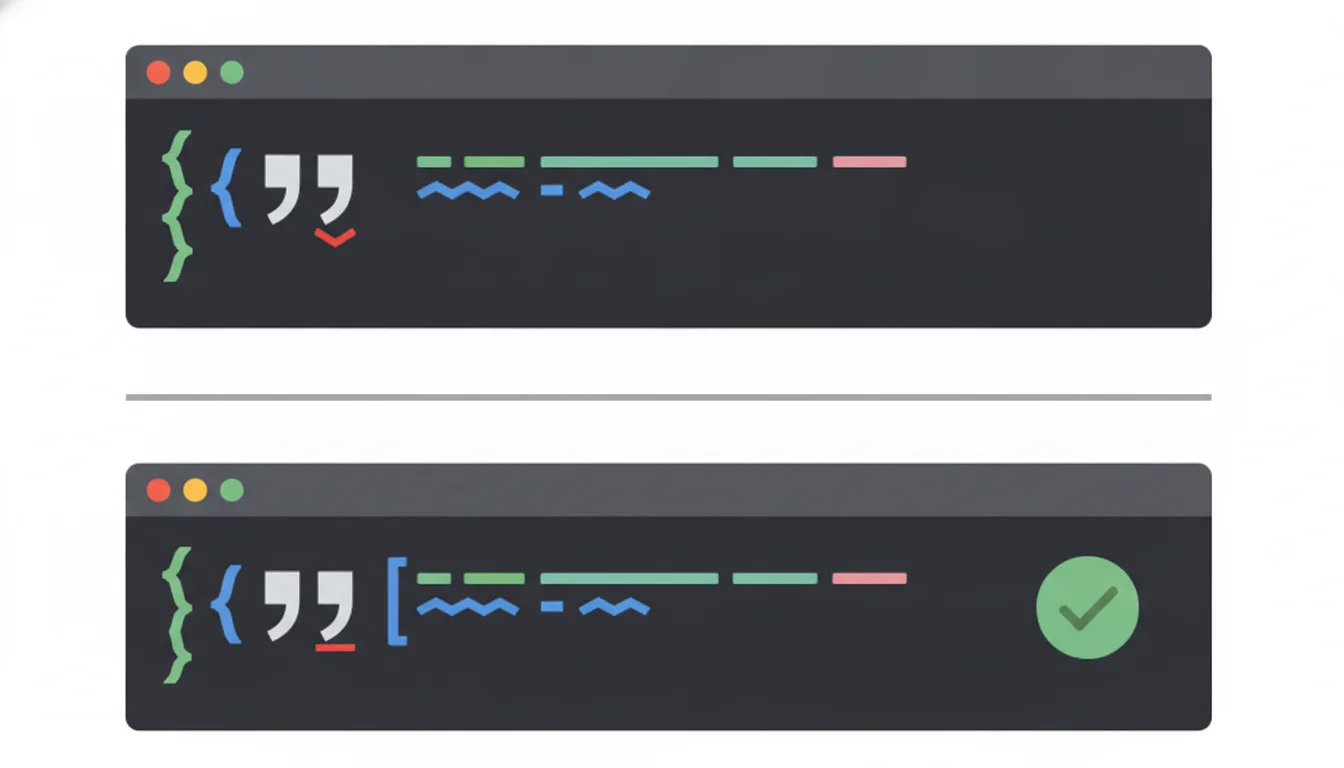
JSON, JavaScript, Python, and nearly every other language use the plain straight quote (U+0022) and apostrophe (U+0027) as string delimiters. A curly quote is a different character with a different code point, so a parser sees it as ordinary text inside the string, not as the character that ends the string.
This shows up constantly when copying code from places that apply typographic formatting automatically: a blog post, a Word document, a PDF, a Google Slides deck, or a message in a chat app with smart quotes enabled. The code looks completely normal in the source, and it looks completely normal after pasting, since curly and straight quotes are hard to tell apart visually at normal font sizes. The first sign of a problem is usually a parser error: Unexpected token in JavaScript, SyntaxError in Python, or "invalid JSON" in a formatter or linter.
If you paste a JSON snippet into the JSON Formatter and it reports an error you can't immediately see, curly quotes are one of the most common invisible causes, especially if the JSON came from a webpage, a blog post, or documentation copied out of a Word file. Run the text through the Article Formatter first to convert any curly quotes to straight ones, then paste the cleaned result into the JSON Formatter to validate it.
Going the Other Way: Straight Quotes to Typographic Quotes
Sometimes the goal is the opposite: you have plain straight quotes and want proper typographic quotes for a print layout, an ebook, or a design where curly quotes simply look better. This direction is harder to automate reliably, because a script has to guess whether a given quote character opens or closes based on what's around it.
A basic regex approach handles the common case: a quote following whitespace, a line start, or an opening bracket is treated as an opening quote; everything else is treated as a closing quote.
function toSmartQuotes(text) {
  return text
    .replace(/(^|[\s([{])"/g, '$1“')
    .replace(/"/g, '”')
    .replace(/(^|[\s([{])'/g, '$1‘')
    .replace(/'/g, '’');
}
This works for straightforward sentences, but it breaks on edge cases: an abbreviated year like "the '80s" gets treated as an opening quote instead of an apostrophe, and nested quotes ("she said 'hello'") need position-aware handling the simple version above doesn't do. For a document with a handful of these cases, it's faster to fix them by hand after running the regex. For anything larger or produced regularly (an ebook pipeline, a CMS with many articles), a dedicated typography library like SmartyPants or a language-specific equivalent handles the edge cases properly and is worth the extra dependency.
Tips for Better Results
- Fix code before you run it, not after. If a script or config file fails to parse right after a paste, curly quotes are worth checking before you assume the logic is wrong.
- Watch for the apostrophe specifically. The right single curly quote (U+2019) is what Word uses for contractions like "don't" and "it's," not just for quoted speech, so it shows up more often than people expect.
- Check your terminal encoding before using sed with literal characters. If the literal-character command in this guide doesn't match anything, your terminal or locale probably isn't UTF-8.
- Turn off the source, not just the symptom. If you paste code from Word or Google Docs regularly, disabling smart quotes at the source saves you from having to clean it up every time.
- Don't assume visual similarity means identical characters. Curly and straight quotes, along with hyphens and en/em dashes, all look close enough at normal reading size that a parser error is often the first real evidence something's wrong.
Frequently Asked Questions
What is the fastest way to convert smart quotes to straight quotes?
Why do curly quotes break JSON and code?
How do I stop Word from creating smart quotes in the first place?
How do I convert smart quotes to straight quotes in JavaScript?
text.replace(/[‘’]/g, "'").replace(/[“”]/g, '"'). The first replace handles left and right single curly quotes, and the second handles left and right double curly quotes, converting both to their straight equivalents.
Can I convert straight quotes into smart quotes for better typography?
Related Tools and Guides
Article Formatter
Clean up quotes, spacing, and encoding in one click
JSON Formatter
Validate and format JSON, catch hidden character errors
Windows-1252 vs UTF-8
Why Word text turns into garbled characters online
Fix Weird Characters in WordPress
Full guide to encoding artifacts from pasting Word content